 AutomaTag
Fix your music library tags automatically
AutomaTag, listed on Google Play as Automatic Tag Editor, is an automatic MP3 and music tag editor. It finds the right title, artist, album and cover art for every song, from online databases or by listening to the audio, and writes them straight into your files.
- Play Store rating
- 4.1
- Downloads
- 5M+
- App languages
- 18
- Audio formats
- 9
Features
Everything your music library needs
From one messy file to thousands of songs, AutomaTag does the boring part for you.
Automatic matching
Searches several music databases at the same time and puts the best match first.
Audio fingerprinting
No tags, meaningless file name? AutomaTag identifies the song from how it sounds.
Batch tagging
Tag whole folders in semi-automatic or fully automatic mode, even with the app in the background.
Tag whole albums
Match a set of songs to an album's tracklist: correct titles and track numbers, with the same album, year and cover on every track.
High-resolution album art
Download album covers up to 1200×1200 and embed them in your files, or use your own image from the gallery or the web.
Edit every tag
Title, artist, album, album artist, genre, year, track and disc number, composer, comment and lyrics. MP3 files use ID3v2.3 or ID3v2.4.
Rename files from tags
Name files from their tags with your own pattern, like Artist - Title, and fix wrong file extensions.
All major formats
MP3, FLAC, M4A, OGG, Opus, WMA, WAV, AIFF and APE, on internal storage and SD card.
Duplicate finder
Spot the same song saved twice, even when the files have different names or tags.
Screenshots
Simple, clean and fast
A modern Material Design interface that stays out of your way.
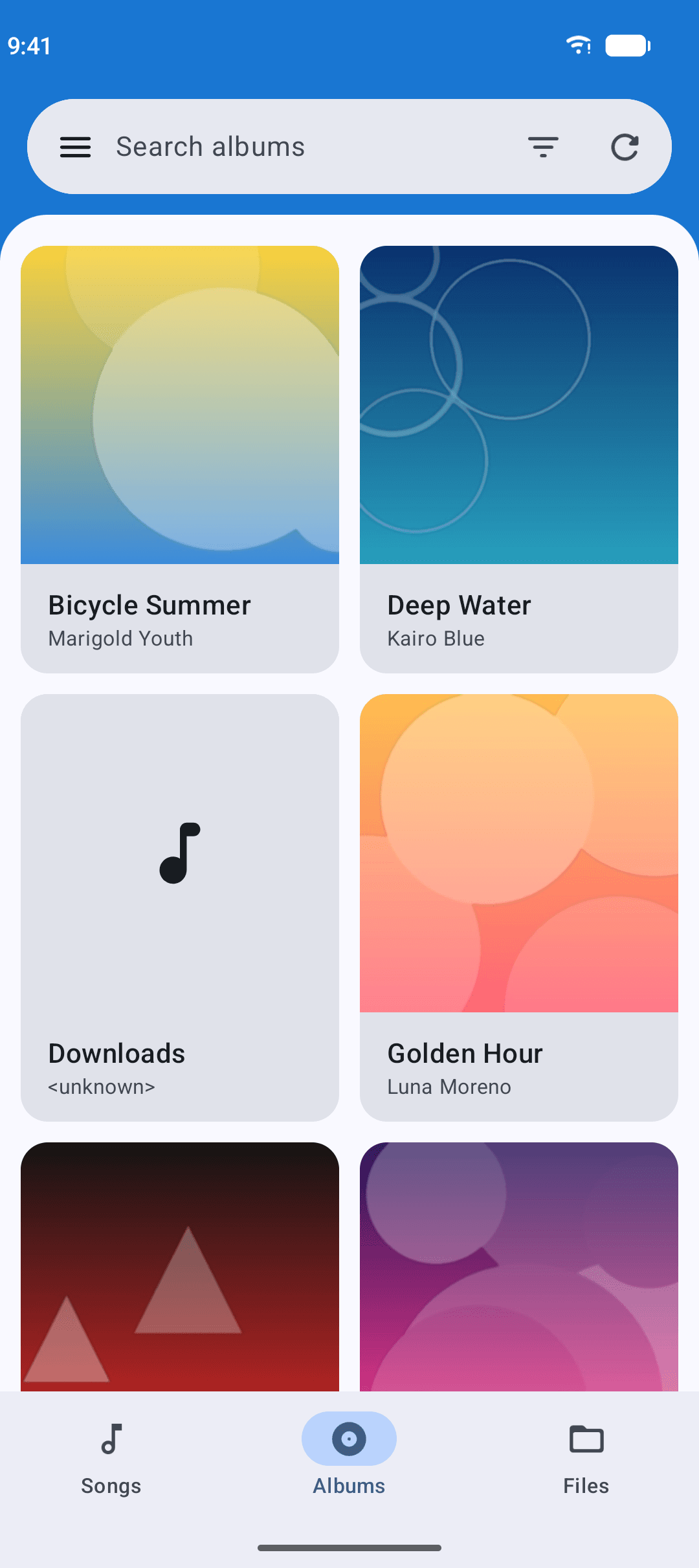
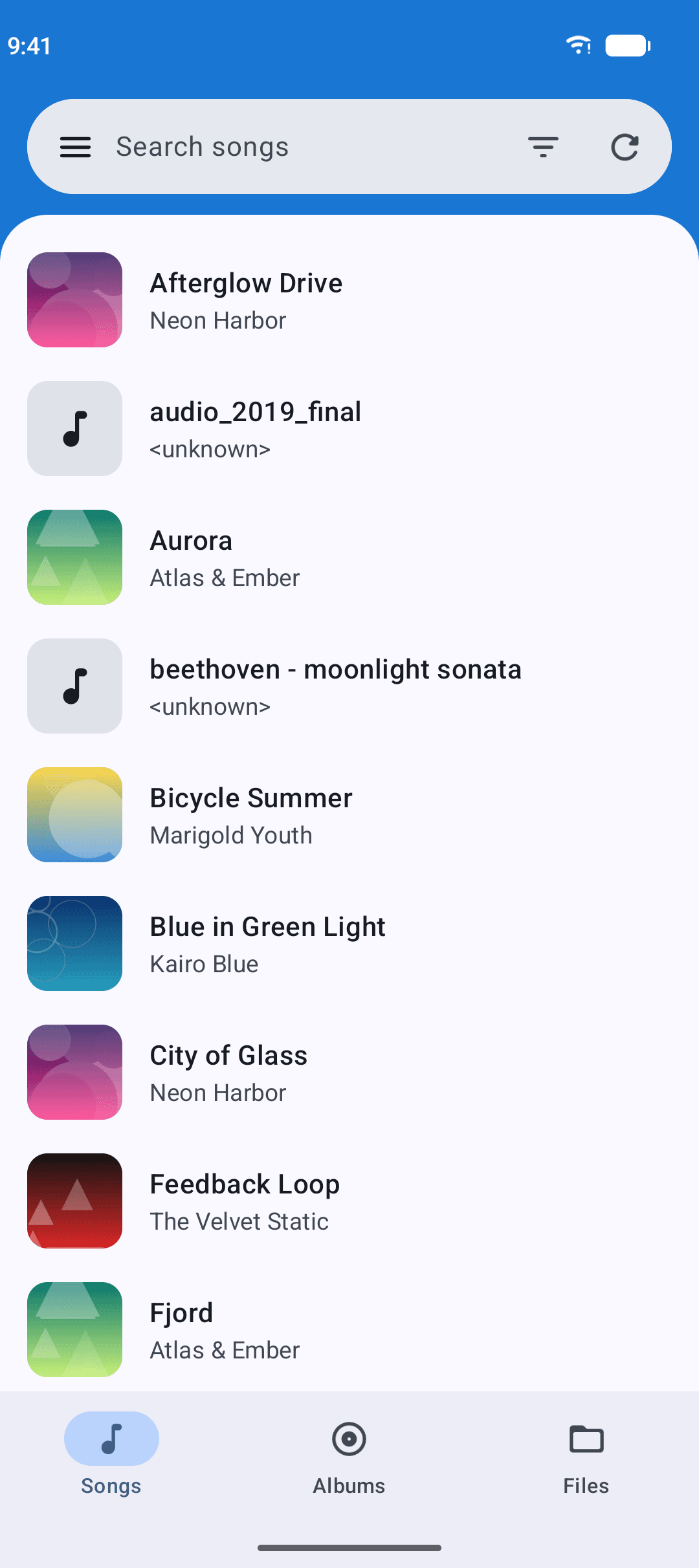
Your whole library at a glance Browse by album with cover art 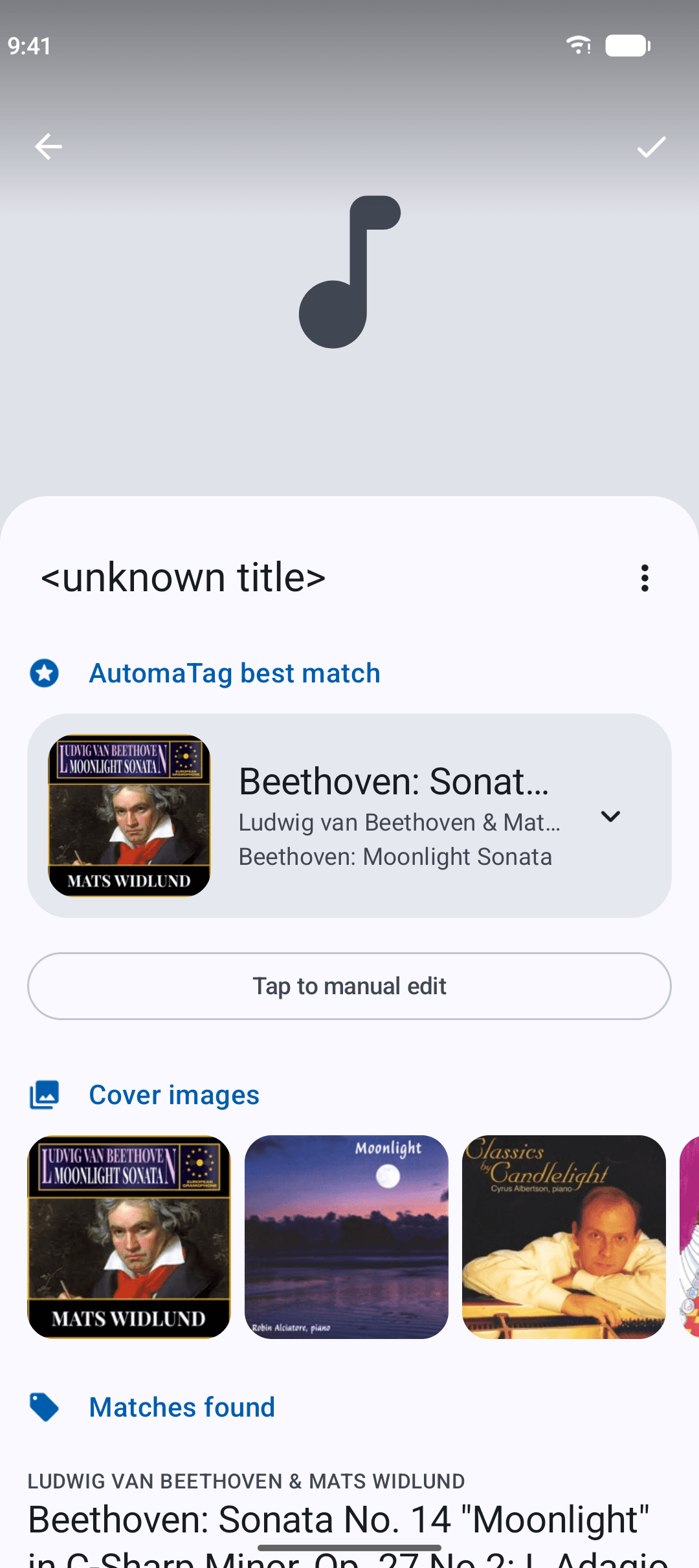
Best match and cover images, found online 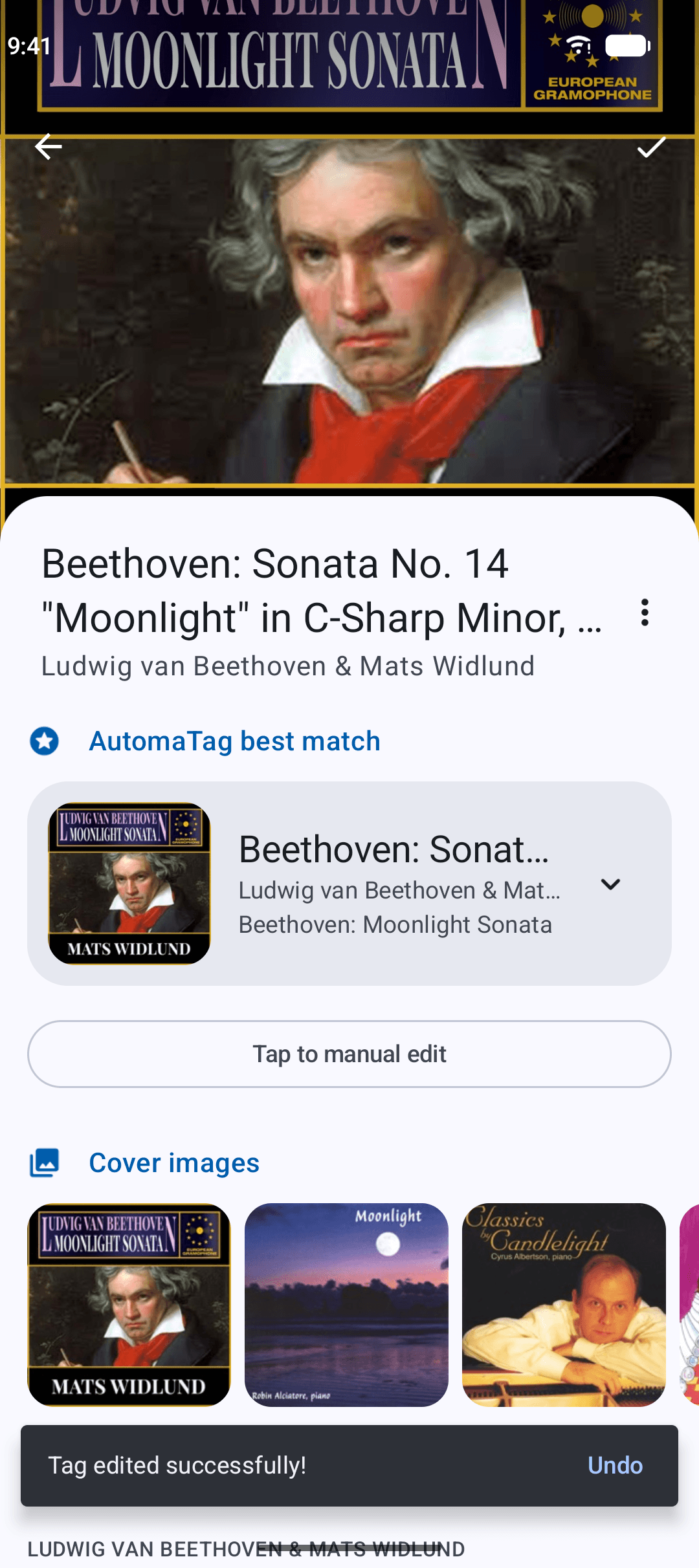
One tap to apply the right tags 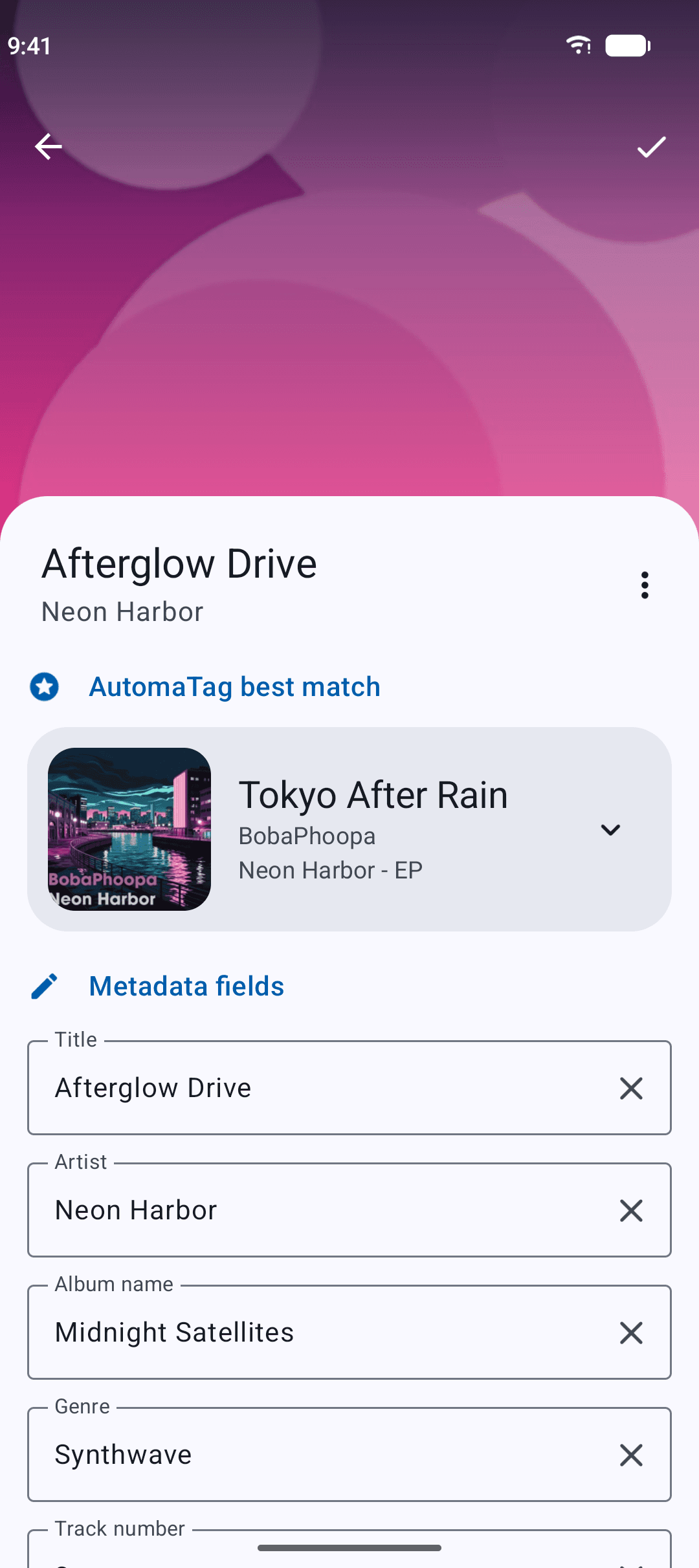
Edit every field by hand when you want to
How it works
Perfect tags in three steps
- 1
Pick your music
Open a single song, or select whole albums and folders for batch tagging.
- 2
AutomaTag finds the match
It looks the song up online and, if needed, identifies it by its audio fingerprint.
- 3
Review and save
Check the result, swap the cover if you like, and save. The tags are written into the file.
Free & Pro
Free to start. Pro when you need it
Tag songs one by one for free. Upgrade once to tag your whole library automatically.
Free
With ads
- IncludedEdit tags by hand
- IncludedOnline lookup, one song at a time
- IncludedCover art search
- Not includedBatch tagging, semi and fully automatic
- Not includedAudio fingerprint recognition
- Not includedDuplicate finder
- Not includedNo ads
Pro
One-time purchase, or included with Google Play Pass
- IncludedEdit tags by hand
- IncludedOnline lookup, one song at a time
- IncludedCover art search
- IncludedBatch tagging, semi and fully automatic
- IncludedAudio fingerprint recognition
- IncludedDuplicate finder
- IncludedNo ads
FAQ
Frequently asked questions
Quick answers about formats, storage, purchases and privacy.
Is AutomaTag free? What do I get with Pro?
Editing songs one by one, with online lookup and cover search, is free with ads.
The paid features are Batch modes, for tagging hundreds of songs at once, and Audio fingerprinting, which recognizes songs by their sound and unlocks the full duplicate finder. You can buy them separately, or together as AutomaTag Pro at a better price. Each is a one-time purchase with no subscription, and any purchase removes ads.
Is AutomaTag included with Google Play Pass?
Yes, everything is. With Google Play Pass you get Batch modes, Audio fingerprinting and the duplicate finder, with no ads. The purchase page in the app shows "Included with Play Pass".
Which audio formats are supported?
AutomaTag reads and writes the tags of MP3, M4A (AAC and ALAC), FLAC, OGG, Opus, WMA, WAV, AIFF and APE files, on internal storage and SD card.
Cover images can be saved inside MP3, M4A, FLAC, OGG and Opus files. WMA, WAV, AIFF and APE files keep their text tags, but the cover is skipped.
Where does AutomaTag find song information?
Every time you open a song, AutomaTag searches iTunes, Deezer and MusicBrainz at the same time, using the title and artist already in the song, or the file name when they are missing. Exact matches come first and compilations are pushed down, so the best match is usually the original album.
Covers are downloaded in high resolution, up to 1200×1200. Where a catalog differs by country, the one set in Lookup Country is used.
Why can't I edit songs on my SD card?
Android protects the SD card more than internal storage, so AutomaTag needs your permission once. When the Storage access permission window appears, tap Select, open the folder it names or any folder that contains it, then tap Use this folder and Allow. On Android 10 and older, choose the main folder of the SD card.
Android doesn't allow choosing the Download folder itself or the main storage folder: if your songs are right inside Download, move them into a subfolder or into Music first.
Are my music files uploaded?
No, your audio files never leave your phone. To find a match, only the song's text tags or file name are sent to the music databases. With audio fingerprinting, only the fingerprint and the duration are sent to the AutomaTag server. The duplicate finder works entirely on your phone.
The privacy policy explains every detail.
Give your music the tags it deserves
Join over 5 million people who cleaned up their music library with AutomaTag.
Get it onGoogle Play